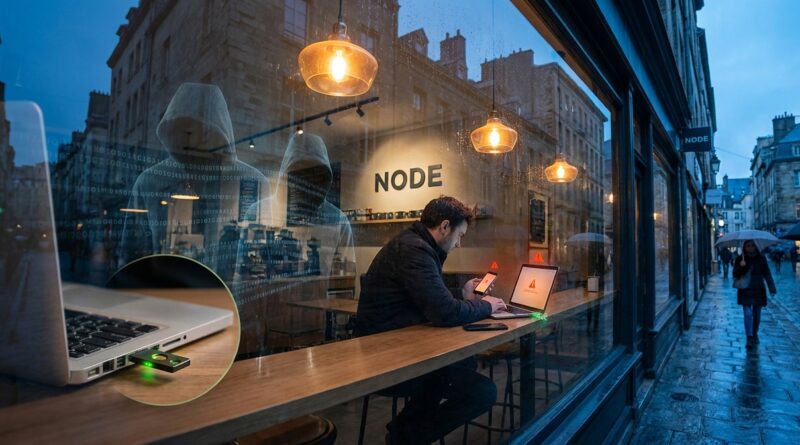
The New ‘Public Wi‑Fi Risk Map’: How Digital Nomads Can Lock Down Their Money Before The Next Coffee Shop Hack
You work hard to build financial independence. Then you open your bank app on airport Wi‑Fi, check your brokerage account from a café, or log into your password manager at a co-working desk you have never seen before. It feels normal. That is the problem. Public Wi‑Fi has become part of the routine for digital nomads, but attackers count on that routine too. One fake hotspot, one reused password, or one sketchy browser extension can turn a quick coffee stop into a very expensive day. Bitdefender’s latest focus on protecting remote workers is a useful wake-up call. The risk is not getting smaller as more of us work from anywhere. It is getting wider, messier, and easier to ignore until something breaks. The good news is you do not need to be a security pro to protect your money. You just need a simple system that works every time you connect.
⚡ In a Hurry? Key Takeaways
- Public wifi security for digital nomads starts with one rule: do not log into financial accounts on public Wi‑Fi unless you are using a trusted VPN or your own mobile hotspot.
- Turn on app-based two-factor authentication, use unique passwords in a password manager, and remove browser extensions you do not fully trust.
- A stolen account can wipe out months or years of careful saving, so a few small security habits are worth far more than any travel points or budget hack.
Why this matters more than most nomads think
When people hear “public Wi‑Fi risk,” they often picture some hoodie-wearing hacker in a dark corner. Real life is more boring, and that is why it works. You join “Free Airport WiFi.” It looks legit. You answer email. You open your banking app. Maybe you approve a transfer. Maybe your browser quietly auto-fills a saved password.
If that network is fake, poorly secured, or being watched, you have just handed over more than a login. You have shared habits, device details, and possibly enough breadcrumbs to make the next attack easier.
For digital nomads, the danger is bigger because your office changes all the time. New cities. New routers. New staff. New devices nearby. Your attack surface keeps moving, and every move adds a little uncertainty.
What Bitdefender’s warning really means
Bitdefender’s push around securing remote workers on public networks is not just a pitch for security software. It points to a larger shift. More people are working from coffee shops, terminals, hotels, and shared offices. At the same time, criminals are getting better at stealing sessions, tricking users with fake login screens, and grabbing data through bad extensions or weak account security.
In plain English, the old advice of “just look for the padlock in your browser” is not enough anymore.
The biggest weak spots for your money
1. Fake hotspots
An attacker can create a Wi‑Fi network with a name that looks close enough to the real one. You connect without thinking. From there, they may try to intercept traffic, push you toward fake login pages, or collect information about your device.
2. Reused passwords
If you use the same password for one travel site, one old shopping account, and your email or finance tools, a breach on the least important site can open the door to the most important one.
3. Weak two-factor authentication
Text message codes are better than nothing, but app-based authenticators or hardware security keys are safer. SIM swap attacks still happen, especially if someone gets enough personal info to target you.
4. Risky browser extensions
This one gets missed all the time. Extensions can read page content, track what you do, and in some cases interfere with logins or inject ads and scripts. If you installed a coupon helper, AI sidebar, grammar tool, or PDF add-on two years ago and forgot about it, take another look.
5. Auto-login everywhere
Convenience is great until your unlocked laptop, synced browser, and saved sessions give a thief direct access to your accounts. That is extra risky when you work in public places.
Your simple public WiFi security for digital nomads playbook
Use your phone’s hotspot for money stuff
If you need to check your bank, move money, access your brokerage, or open your password manager vault, switch to your mobile hotspot. It is usually the easiest and safest option when you are on the move.
If mobile data is expensive where you are, save sensitive tasks for when you can use your own trusted connection. That small delay is better than cleaning up fraud later.
Use a reputable VPN on public networks
A VPN is not magic, and it does not fix every risk. But it does make it much harder for other people on the same network to snoop on your traffic. Choose a well-known provider, turn on auto-connect, and set it to start whenever you join unknown Wi‑Fi.
The key point is this. If you are going to use public Wi‑Fi, do not make “remembering to turn on the VPN” optional.
Separate “money logins” from “casual browsing”
Use one browser for finance and another for everything else, or create a separate browser profile just for banking and investing. Keep that finance profile clean. No random extensions. No social media tabs. No shopping plug-ins.
Think of it like having a separate wallet for your passport and emergency cash. Less clutter. Less risk.
Turn on better two-factor authentication
For banking, brokerages, email, and your password manager, use an authenticator app if the service allows it. Better yet, use a hardware key for your most important accounts.
Your email account matters most here. If someone gets into your email, they can often reset access to everything else.
Use unique passwords for every account
This is where a password manager earns its keep. Let it create long, unique passwords for each site. Then protect the password manager itself with a strong master password and two-factor authentication.
Yes, it can feel weird putting all your logins in one place. But one well-protected vault is much safer than reusing the same three passwords across twenty sites.
Audit your browser extensions today
Open your extensions list and remove anything you do not need, do not recognize, or do not fully trust. Keep the list short. Very short.
If an extension wants broad permissions like “read and change all your data on websites you visit,” take that seriously. Many people click yes and move on. That is exactly why attackers like this route.
Lock down your devices
Use a screen lock. Turn on full-disk encryption. Enable “find my device” features. Make sure your laptop and phone install security updates automatically.
Not every threat comes through Wi‑Fi. Sometimes someone simply grabs an unattended phone from a café table.
Red flags that a network is not worth the risk
Walk away from public Wi‑Fi if:
- The network name is oddly spelled or there are several similar names.
- You are asked to install software or a certificate just to get online.
- Websites suddenly look strange, reload oddly, or ask you to log in again for no clear reason.
- Your VPN refuses to connect on that network.
- The login page feels sloppy, pushy, or too curious about personal details.
Trust your gut here. If something feels off, use your hotspot and move on.
What to do if you think you slipped up
Change passwords fast
Start with your email, bank, brokerage, and password manager. If one of those uses the same password as anything else, change those too.
Sign out of active sessions
Many services let you log out from all devices. Do that for important accounts, especially email and finance apps.
Check account alerts and statements
Look for logins from new locations, password reset emails, and transactions you do not recognize. Set up alerts for withdrawals, wire transfers, and large purchases.
Scan your device
Run a trusted security scan, update your system, and remove questionable apps or extensions. If the device still acts strangely, get help before logging into sensitive accounts again.
A good routine beats a perfect one
You do not need to become paranoid. You just need to stop treating public Wi‑Fi as harmless background noise. The safest habit is also the easiest to remember.
Public Wi‑Fi for casual browsing. Mobile hotspot or trusted VPN for anything tied to your money.
That one rule alone will cut a lot of risk.
At a Glance: Comparison
| Feature/Aspect | Details | Verdict |
|---|---|---|
| Public Wi‑Fi vs mobile hotspot | Public Wi‑Fi is convenient but unpredictable. A personal hotspot is more private and better for banking or investing. | Use hotspot for financial logins whenever possible. |
| SMS codes vs authenticator app | Text codes help, but app-based two-factor is stronger and less exposed to SIM-related attacks. | Choose authenticator apps for key accounts. |
| Many browser extensions vs minimal setup | More extensions mean more chances for tracking, data access, or shady behavior. | Keep your finance browser as clean as possible. |
Conclusion
Bitdefender’s warning should land as a flashing red light for anyone trying to reach financial independence from a laptop. The attack surface for remote workers and digital nomads is getting bigger, not smaller. That sounds grim, but it is also manageable. You do not need a complicated setup. You need a few boring, reliable habits that protect your brokerage accounts, banking apps, and password manager when the network around you cannot be trusted. Use your hotspot for money tasks. Keep a VPN ready. Turn on strong two-factor authentication. Cut back on browser extensions. Those steps may not feel as exciting as a new points strategy or a cheaper apartment abroad, but they protect the foundation everything else sits on. And unlike a blown travel budget, a drained account or hijacked login can take years to recover from.